
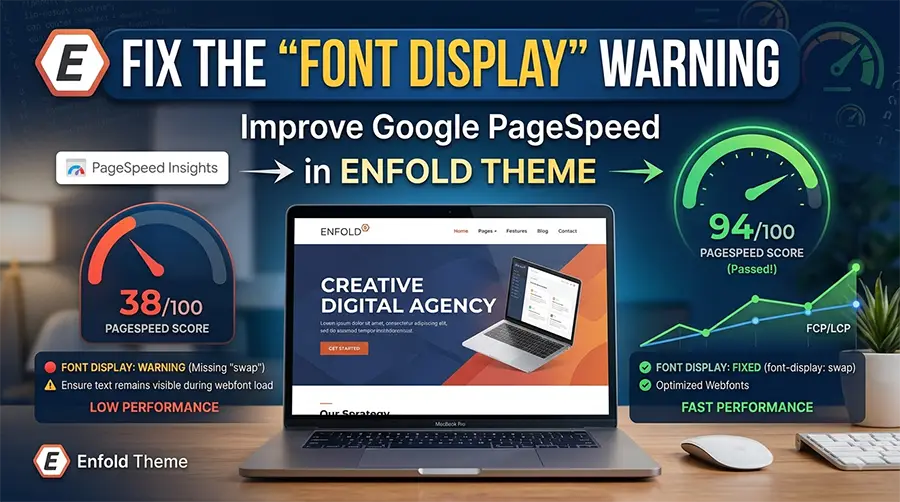
If you use the Enfold WordPress theme, you may have seen this warning in Google PageSpeed Insights or Lighthouse:
Font display — Est savings
Google recommends using font-display: swap or font-display: optional so that text remains visible while web fonts are loading.
This can be confusing on Enfold websites because the fonts are usually selected from the Enfold Theme Options rather than being manually added with CSS.
The good news is that you don’t need to manually edit Enfold’s generated CSS or create another @font-face rule.
There is a much cleaner solution using an Enfold filter.
Why does this happen in Enfold?
Enfold can generate font-face CSS similar to this:
@font-face {
    font-family: 'entypo-fontello';
    font-weight: normal;
    font-style: normal;
    font-display: auto;
    src: url(.../entypo-fontello.woff2) format('woff2');
}
The important part is:
font-display: auto;When Lighthouse sees font-display: auto, it may report a Font display opportunity.
For example, you may see something like:
Font display — Est savings of 760 ms
entypo-fontello.woff2
This is particularly noticeable with Enfold’s Entypo Fontello icon font.
The Easy Fix
Instead of modifying Enfold’s generated CSS, we can use the Enfold avf_font_display filter.
Add this code to your child theme’s functions.php:
add_filter( 'avf_font_display', 'c2tw_avf_font_display', 10, 2 );
function c2tw_avf_font_display( $font_display, $font_name ) {
    if ( 'entypo-fontello' === $font_name ) {
        return 'swap';
    }
    return $font_display;
}
That’s it.
After adding the code, Enfold can generate the font declaration with:
font-display: swap;instead of:
font-display: auto;What Does font-display: swap Do?
The browser doesn’t have to wait for the web font before displaying text.
With:
font-display: swap;the browser can initially use an available fallback font and then replace it with the correct web font when it finishes loading.
This helps prevent the situation where visitors see an empty area while the font is downloading.
In simple terms:
Without swap:
Page loads
   ↓
Browser waits for font
   ↓
Text may be temporarily invisible
   ↓
Font loads
   ↓
Text appears
With swap:
Page loads
   ↓
Fallback font displays
   ↓
Web font loads
   ↓
Browser switches to the correct font
Why You Should Not Edit Enfold’s Generated CSS
You may find something like this in the page source:
@font-face {
    font-family: 'entypo-fontello';
    font-display: auto;
}
It might be tempting to directly change:
font-display: auto;to:
font-display: swap;I don’t recommend doing that.
Enfold generates this CSS dynamically, so your change could disappear when:
- Enfold regenerates its CSS
- You change theme settings
- The theme is updated
- Cache files are regenerated
Using the Enfold filter is much cleaner.
Why I Don’t Recommend Adding Another @font-face
Another common approach is to add something like:
@font-face {
    font-family: 'entypo-fontello';
    font-display: swap;
}
This can create another font declaration for the same font family.
That’s unnecessary when Enfold already provides a filter for controlling the font-display value.
The better approach is to tell Enfold:
“When you generate this font, use
swap.”
That’s exactly what the PHP filter does.
Target Only Entypo Font
The code above specifically targets:
entypo-fontelloThat’s useful because you may not want to change the behavior of every font on the website.
The important part is:
if ( 'entypo-fontello' === $font_name ) {
    return 'swap';
}
Everything else keeps its existing value:
return $font_display;So this is my recommended version for Enfold websites.
What About All Enfold Fonts?
If you want to apply font-display: swap to all fonts handled by Enfold, you can use:
add_filter( 'avf_font_display', function( $font_display ) {
    return 'swap';
}, 10, 1 );
This tells Enfold to use:
font-display: swap;for all fonts passing through this filter.
Which version should you use?
For most websites, I recommend starting with the targeted version:
add_filter( 'avf_font_display', 'c2tw_avf_font_display', 10, 2 );
function c2tw_avf_font_display( $font_display, $font_name ) {
    if ( 'entypo-fontello' === $font_name ) {
        return 'swap';
    }
    return $font_display;
}
It makes a smaller change and specifically addresses the common Enfold Entypo warning.
Where Should I Add the Code?
The best place is your child theme’s functions.php.
You can also use a code-snippet management plugin if you prefer not to edit theme files directly.
Do not put the PHP code inside:
- Enfold Quick CSS
- Elementor Custom CSS
- WordPress Additional CSS
- a normal CSS file
This is PHP and needs to run through WordPress.
After Adding the Code
Don’t immediately assume PageSpeed will show the change.
Clear your caches first.
Step 1 — Clear WordPress/cache plugin cache
If you’re using a caching plugin, clear its cache.
Step 2 — Regenerate Enfold files
If your Enfold version has an option to regenerate/clear its generated CSS/JS files, do that.
Step 3 — Clear server/CDN cache
If the website uses Cloudflare or another CDN/cache, clear the relevant cache.
Step 4 — Test again
Run Google PageSpeed Insights again.
You can also inspect the generated CSS and search for:
entypo-fontelloYou should now find:
font-display: swap;instead of:
font-display: auto;Important: PageSpeed Scores Can Change Between Tests
Don’t panic if you run PageSpeed twice and get slightly different results.
Performance testing depends on many things, including:
- Server response time
- Network conditions
- Cache status
- CDN behavior
- Browser cache
- CPU/network throttling
- Third-party resources
- Google Fonts
- Images
- JavaScript execution
Therefore, don’t keep changing code simply because one test changes by a few points.
Look for consistent improvements across several tests.
What If PageSpeed Still Shows Other Fonts?
That’s possible.
For example, you might see:
entypo-fontello.woff2
Google Font .woff2
Google Font .woff2
Google Font .woff2
Don’t assume all of them need to be fixed individually.
First identify which resource has the significant estimated saving.
On one Enfold website, for example, the report may show:
entypo-fontello.woff2     760 ms
Google Font               10 ms
Google Font               10 ms
Google Font               10 ms
In that situation, the Entypo font is the important issue. Spending time trying to eliminate 10 ms font entries may not be worthwhile.
Quick Copy-Paste Solution
If you are working on an Enfold website and PageSpeed is reporting the Entypo font, this is the code to keep handy:
add_filter( 'avf_font_display', 'c2tw_avf_font_display', 10, 2 );
function c2tw_avf_font_display( $font_display, $font_name ) {
    if ( 'entypo-fontello' === $font_name ) {
        return 'swap';
    }
    return $font_display;
}
Or, for all Enfold fonts:
add_filter( 'avf_font_display', function( $font_display ) {
    return 'swap';
}, 10, 1 );
Recommended: Start with the first, targeted version.
Final Takeaway
If you’re using Enfold and PageSpeed reports:
Font display —
entypo-fontello.woff2
you don’t need to manually modify Enfold’s generated CSS.
Use the Enfold filter:
add_filter( 'avf_font_display', 'c2tw_avf_font_display', 10, 2 );
function c2tw_avf_font_display( $font_display, $font_name ) {
    if ( 'entypo-fontello' === $font_name ) {
        return 'swap';
    }
    return $font_display;
}
It is a simple, reusable fix that can save you from manually editing generated font CSS on every Enfold website.
Keep this snippet bookmarked — you’ll likely use it again on many Enfold projects.